





Interested in creating robust automations for absolutely nothing each month? In this tutorial, we will learn to run the complete n8n Docker installation on your local computer through WSL2, with Docker Desktop on Windows 11/10. By the end, you will have your very own free, local, automation server running on your laptop.
Whether you’re interested in learning about hosting n8n docker desktop, you are looking for AI workflow integration tutorials or simply want to automate common tasks on your laptop, this easy to follow guide covers everything that you need to know.
Why Install n8n Locally With Docker?
N8n is an open source workflow automation tool that you can use to connect applications, APIs, and services in a visual way. You will enjoy having unlimited workflows, enhanced privacy, no monthly subscription fees, and the advantage of having your own separate environment if you run n8n locally on Docker.
Benefits of Running n8n Locally
- 100% free forever
- Unlimited workflow executions
- Better privacy and control
- Faster local performance
- Easy backups using Docker volumes
- Safe isolated environment
“Self-hosting n8n gives creators full ownership of their automation infrastructure without recurring SaaS costs.”
Step 1: Enable Virtualization on Windows
Make sure that virtualization is supported by your computer before beginning the n8n docker installation on your local PC.
Without this action, Docker Desktop may not start, or freeze during the start.
What to Do
- Open the Windows Start Menu
- Search for Turn Windows features on or off
- Enable these two options:
- Virtual Machine Platform
- Windows Subsystem for Linux
- Click OK
- Restart your computer
Common Pitfalls to Avoid
- Forgetting to restart Windows
- Missing BIOS virtualization settings
- Docker crashing immediately after installation
If Windows shows hardware-related errors, enter your BIOS during startup and enable:
- Intel VT-x
- Intel Virtualization Technology
- AMD-V
Step 2: Install WSL2 (Windows Subsystem for Linux)
To achieve a smooth install n8n docker compose localhost later on we require WSL2 for the Linux environment that Docker needs.
Install WSL2
Run in an Administrator Powershell.
wsl --installAfter installation:
- Create your Linux username
- Set a secure password
- Restart your computer
Why WSL2 Matters
WSL2 dramatically improves:
- Docker performance
- File system speed
- Container reliability
It also prevents many Docker Desktop compatibility problems.
Step 3: Install Docker Desktop Properly
Docker Desktop allows you to run n8n inside a container safely. This is the easiest way to self host n8n docker desktop on Windows.
Download Docker Desktop
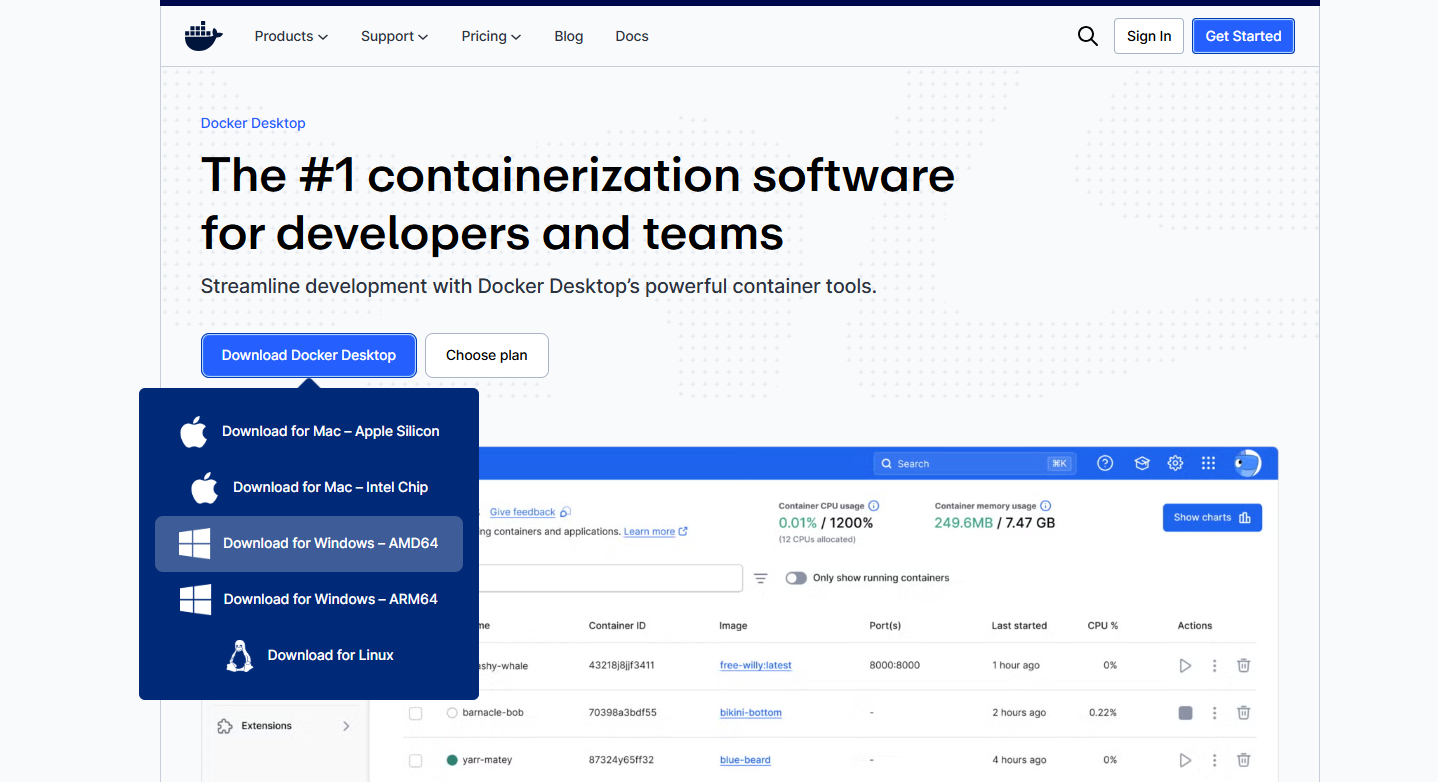
Visit the official Docker website: Official Docker Desktop download page
Download:
- Docker Desktop for Windows (AMD64)
Installation Settings
During setup:
- Keep Use WSL 2 based engine enabled
- Accept default settings
- Restart if prompted
After installation:
- Launch Docker Desktop
- Wait for the green status indicator
Step 4: Create Persistent Storage for n8n
This is a common mistake by new users-workflow losses when they restart their Docker container.
For that to not happen, you have to have a correctly set up persistent volume for n8n docker.
Create Docker Volume
Run this command:
docker volume create n8n_dataWhy This Is Important
This volume safely stores:
- Workflows
- Credentials
- Settings
- User accounts
Without persistent storage, everything disappears when the container is removed.
Step 5: Launch n8n Using Docker
Now it’s time to install and run n8n locally.
This command deploys n8n in the background automatically.
Run n8n Container
Paste this command into PowerShell:
docker run -d --name n8n --restart always -p 5678:5678 -v n8n_data:/home/node/.n8n docker.n8n.io/n8nio/n8nWhat This Command Does
-d→ Runs in background--restart always→ Auto-starts on reboot-p 5678:5678→ Opens n8n dashboard-v→ Connects persistent storage
The first startup may take a few minutes because Docker downloads the n8n image.
Step 6: Open n8n in Your Browser
Once the container is running, open your browser and visit:
http://localhost:5678You’ll see the n8n setup page.
Final Setup Steps
- Create your admin account
- Set your email and password
- Start building workflows
Congratulations — your n8n docker installation local pc is complete.
You now have a fully operational automation platform running locally for free.
Useful Docker Commands for Daily Use
Stop n8n
docker stop n8nStart n8n Again
docker start n8nCheck Running Containers
docker psView Logs
docker logs n8nThese commands help manage your local automation server easily.
Final Thoughts
Installing n8n on your local machine using Docker is the most brilliant option to create robust automations, without paying a monthly fee to cloud services.
- Running with WSL2 and Docker Desktop on your machine brings you the following:
- Great performance
- Full ownership
- Unlimited executions of your workflows
- Flexible professional development
- After you are comfortable with it, you will be able to transition to:
- AI automations
- CRM workflows
- API integrations
- Content automation
- Business process automation
Best of all, you’re in full control of your own automation infrastructure, for free.
Frequently Asked Questions
-
Is n8n free to self-host?
Yes, the n8n Community Edition is completely free to self-host locally using Docker & WSL2.
-
Can I run n8n on Windows 11?
Yes, you can run n8n on Windows 11 using Docker Desktop with WSL2 enabled.
-
Why use Docker for n8n?
Docker keeps n8n isolated, portable, secure, & easier to maintain compared to manual installations.
-
How do I access local n8n?
Open your browser and visit:
http://localhost:5678 -
Does Docker save n8n workflows permanently?
Yes, if you use a Docker volume like
n8n_data, your workflows & credentials remain safe after restarts.